
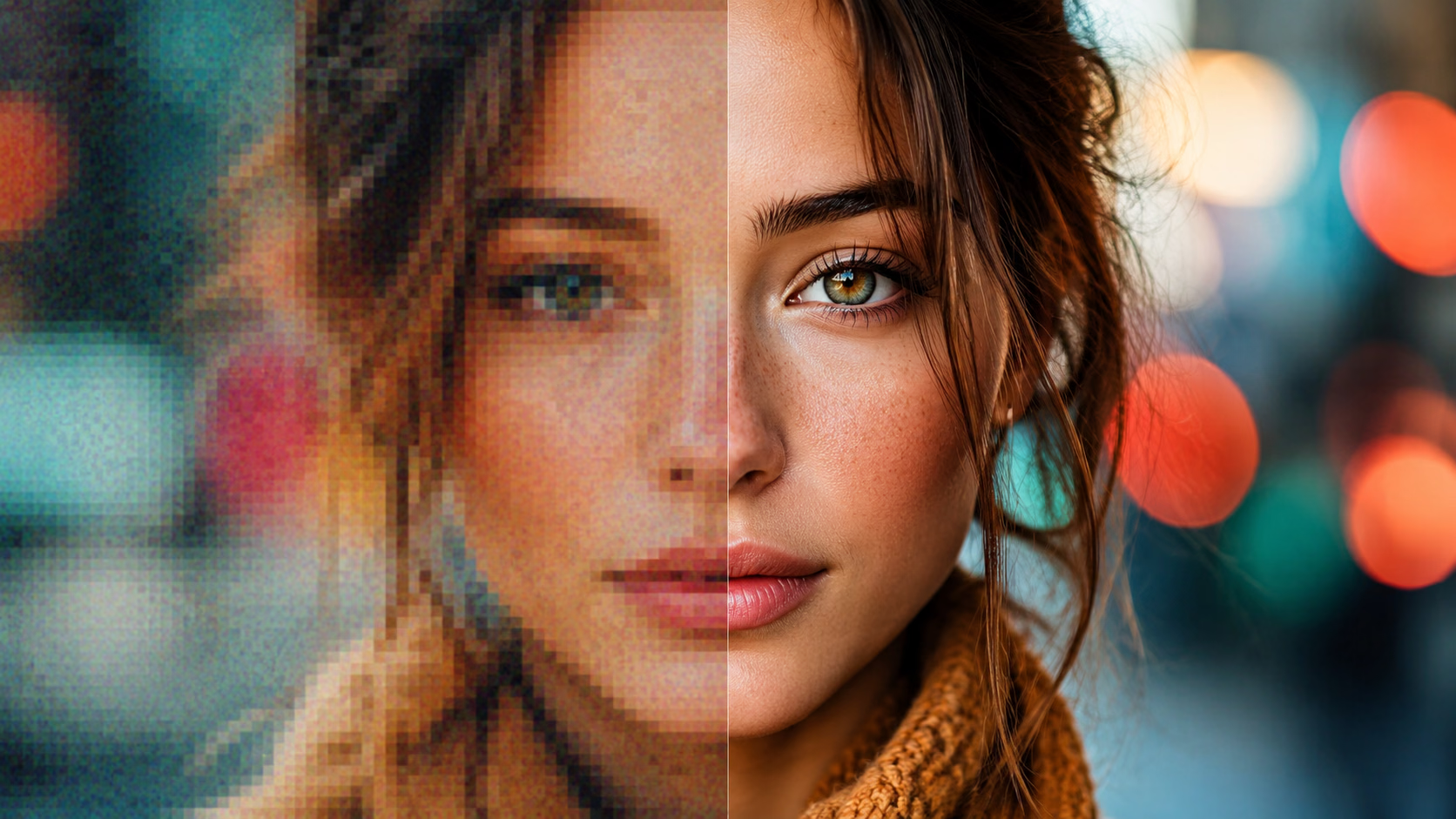
Every day, people run into the same wall: a photo that mattered once, and now it’s too small or too blurry to use. An old family picture scanned at low resolution. A product shot pulled off a website that looks fine on a phone but falls apart the second you try to print it. A screenshot that needed to go into a presentation, except it’s pixelated beyond recognition when you blow it up.
The usual fixes don’t really work. Stretching an image in any basic editor just makes the blur worse. Hiring a designer for a single photo touch-up is overkill. And most “image enhancer” tools online are either paywalled, watermarked, or quietly degrade quality while marketing themselves as magic fixes.
That’s the gap a dedicated Free AI image upscaler online is built to close, and it’s worth understanding how one actually works before trusting it with photos that matter.
How AI Upscaling Actually Works
Traditional upscaling is really just interpolation. When you resize a photo the old-fashioned way, software looks at existing pixels and guesses what the new, larger pixels in between should look like based on their neighbors. It’s a mathematical average, not real detail. That’s why stretched images look soft, smeared, or blocky.
AI upscaling takes a different approach. Instead of guessing from nearby pixels, the model has been trained on enormous sets of images, learning what sharp edges, natural textures, skin tones, and fine details actually look like across different subjects and conditions. When you feed it a low-resolution photo, it doesn’t just stretch the existing data. It reconstructs the image, adding plausible detail back in based on patterns it has learned, while cleaning up compression artifacts and noise along the way.
The result is a larger image that looks like it was captured at higher resolution in the first place, rather than one that was mechanically stretched. Edges stay crisp, textures hold together, and the photo doesn’t take on that soft, waxy look that comes from older upscaling methods.
Who Actually Needs This
Online sellers and small business owners dealing with supplier photos or old product shots that need to look professional on a storefront or marketplace listing, where image quality directly affects whether a buyer trusts the listing.
People restoring old family photos that were scanned at low DPI years ago, often the only copies left of moments that can’t be recreated, where sharpening and enlarging the image matters more than any other edit.
Content creators and marketers who need a thumbnail, banner, or social graphic at a specific size and only have a smaller source image to work with, especially when a shoot or stock photo wasn’t originally sized for the final use case.
Students and professionals preparing presentations or reports where a chart, screenshot, or diagram needs to be legible at a larger size without turning into a blurry mess on screen or in print.
Real estate agents and property listers working with phone-shot interior or exterior photos that need to look sharper for listing sites, where image quality is often the first thing a potential buyer judges.
Why Free and No-Signup Matters Here
A lot of upscaling tools lock their real output behind a paywall, show you a blurred preview, or require an account and email before you can download anything. For a one-off job, like fixing a single old photo or prepping one product image, that friction isn’t worth it.
Stellar’s AI image upscaler skips all of that. You upload an image, the AI processes it, and you get the upscaled result back without needing to register, hand over an email, or pay for a single use. That matters especially for people who aren’t doing this professionally every day. Someone restoring a grandparent’s photo or fixing a one-time listing image shouldn’t have to commit to a subscription or account just to get a clean result.
It also means there’s no pressure to batch everything into one sitting or justify a subscription cost for something you might only need a handful of times a year.
Frequently Asked Questions
Does upscaling an image actually add real detail, or is it just making the file bigger? It adds reconstructed detail, not just a larger file size. The AI has learned what realistic textures, edges, and fine details look like from training on large image datasets, so instead of stretching existing pixels, it fills in new ones based on those learned patterns. The result holds up to zooming in far better than a simple resize.
What file types and sizes does the tool accept? Most AI upscalers of this kind support common formats like JPG and PNG, with reasonable file size limits to keep processing times quick. Check the tool page directly for current format and size limits, since these are occasionally adjusted.
Will upscaling fix a severely blurry or out-of-focus photo? It can improve sharpness and clarity noticeably, but it’s not a substitute for an in-focus original. If the photo was badly out of focus or the subject was moving when it was shot, the AI can only work with the information that’s actually there. Mild to moderate blur and low resolution see the best results.
Is there a limit on how many times I can use it for free? This depends on the current setup of the tool, since usage limits are sometimes adjusted to manage server load. The upscaler itself doesn’t require a paid plan or signup to produce a usable result.
Does the upscaled image lose quality when I download it? No, the downloaded file preserves the upscaled resolution and quality. There’s no compression step that undoes the improvement after processing.
Can I use this for commercial purposes, like product photos for an online store? Yes, there’s no restriction tied to personal versus commercial use for the output itself. Just make sure you have the rights to the original image you’re uploading, since the tool enhances images, it doesn’t clear licensing issues.